• Quick Start
  • Booting
  • Platform
  • Portals
  • References
    • API Reference TOI3
    • IIP Reference
  • Resources
ARRIS Enterprises, Inc. Confidential Information

DVR

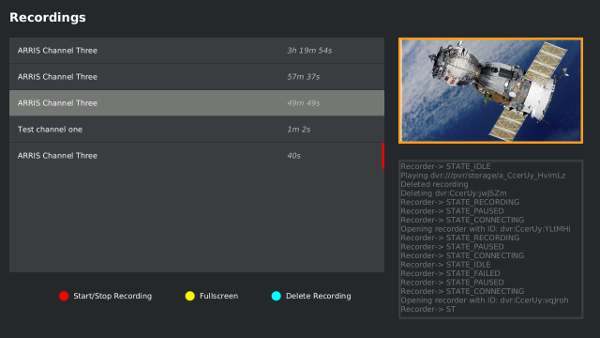
The example portal has support for DVR and shows how to use the Media Service. It uses media recorders to start recording, and demonstrates the newly added Content Service for monitoring on-going recordings, managing storage, and performing searches for content.
Content Service

The Content Service provides applications with an interface for searching for and managing content from multiple sources. Right now, an attached storage device is the only supported content source, but in future there may be content sources such as OTT video streaming services, DLNA in the home network, NAS, NPVR servers, etc.

The actual content, also referred to as content entries, are media files. The exact type depends on the source, but for DVR content sources, each content entry is a recorded video stream. Content entries have attached properties, representing the contents title, duration, URI, description, and others. The exact availablility of properties depends on the type of content source. Custom properties can also be defined and used.

A flexible search function allows applications to search for content entries, from one or multiple sources, with a variety of search properties and conditions. The example portal uses the search to return a list of all recorded content from the attached DVR storage device.

Content Service also provides events when content sources are added or removed. Right now, this means attaching and detatching a USB storage device, but the service could also cover network disconnections from remote content sources with the same API. The example portal UI is event-driven, meaning that event listener functions are registered for many events, and these functions update the UI when TOI events occur (e.g. when a content entry is created or deleted, TOI invokes the listeners registered for those events, and the listener function drives the UI, creating or removing an element from the HTML).

Getting started with Content Service

The ToiContentService.getSources() function provides information about all the sources the STB has available to it. To be able to record to a source or to receive events from the source, an instance is also required, one for each source. The example portal calls ToiContentService.createRecordedContentSourceInstance() for each available source, and stores the instances in recordedeContentSourceInstances.

<sdk_root>/examples/example-html-portal/modules/dvr/dvr.js

function findAndCreateSourceInstances() {
  var sourceInfos = toi.contentService.getSources();
  sourceInfos.forEach(function(sourceInfo) {
    createRecordedContentSourceInstance(sourceInfo);
  });
}

function createRecordedContentSourceInstance(sourceInfo) {
  var instance =
    toi.contentService.createRecordedContentSourceInstance(sourceInfo.id);
  instance.addEventListener(
    toi.consts.ToiContentSource.ON_CONTENT_CHANGED,
    onContentChanged);
  instance.addEventListener(
    toi.consts.ToiContentSource.ON_CONTENT_REMOVED,
    onContentRemoved);
  recordedContentSourceInstances.push(instance);
  framework.emit("RebuildUIList");
}

Event listeners are also added to listen for ON_CONTENT_CHANGED and ON_CONTENT_REMOVED events. These are used to keep the UI up-to-date in an event-driven way. When a piece of content is being recorded, the ON_CONTENT_CHANGED event will be periodically triggered, and the portal uses this to keep the length of the recording up-to-date in the UI. If the end user presses the Blue button to delete a recording, the UI only uses the TOI interface to delete the particular content. The ON_CONTENT_REMOVED event is triggered by this, and the listener function is responsible for removing the item from the UI list.

If some other part of the example portal application, or another content source, could potentially add content in runtime, then the ON_CONTENT_ADDED could be used to keep the UI in sync. This was considered outside the scope of the example.

Event listeners are added for ToiContentSource.ON_SOURCE_AVAILABLE and ToiContentSource.ON_SOURCE_UNAVAILABLE, in case a storage device is added or removed during runtime:

<sdk_root>/examples/example-html-portal/modules/dvr/dvr.js

toi.contentService.addEventListener(
     toi.consts.ToiContentService.ON_SOURCE_AVAILABLE,
     onSourceAvailable);
toi.contentService.addEventListener(
     toi.consts.ToiContentService.ON_SOURCE_UNAVAILABLE,
     onSourceUnavailable);

When a source becomes available, the portal performs a search for recorded content on it, and adds any found content to the UI. When a source becomes unavailable, the list of content in the UI is emptied, and the source instance is released.

Searching for content

When the portal first runs, or when a new content source is attached and becomes available, the UI needs to build a list of all of the available content entries. This is done by using the Content Service search().

<sdk_root>/examples/example-html-portal/modules/dvr/dvr.js

function searchForContent(callback) {
  ...
  var callbacks = {
    onError: function() {},
    onProgress: function() {},
    onResult: function() {},
    onCompleted: function(op) {
      callback(op.result);
    }
  };
  var parameters = {"requestedProperties":
                         ["title", "duration"]
                   };
  toi.contentService.search(callbacks, parameters);
}

The parameters argument doesn't specify any conditions, so all available content entries will be returned. requestedProperties is an array of the properties which shall be returned per content entry in the search results, and cannot be empty (or you get no search results).

Since searching is an asynchronous operation, a callbacks object is provided, with callback functions to be executed when the operation completes. If the search completes OK, the onCompleted callback is invoked. Its argument (op.result) is an array of ToiContentInfo objects, one for each piece of content found. Each ToiContentInfo.properties member holds the list of the properties requested in the search parameters.

The empty functions in callbacks are there just to show you what's available. There's more information on the Async Callback page and the API reference for ToiAsynchronousOperation. The documentation for the function taking the callbacks argument also contains useful info, especially regarding the returned data (op.result in this case).

Start a recording

The following steps are required to start a recording:

  • Create a content entry within the source using ToiRecordedContentSource.create(). Think of it as creating a container for the recording
  • Create an instance of a ToiMediaRecorder
  • Call ToiMediaRecorder.open(), providing the URI to record, and the content entry where the recording will be stored
  • Call ToiMediaRecorder.record() to start the media recorder recording

<sdk_root>/examples/example-html-portal/modules/dvr/dvr.js

function recordCurrentChannel() {
  var sourceUrl = mediaPlayer.getUrl();

  // create a recorder instance
  var recorder = toi.mediaService.createRecorderInstance();
  recorderInstances.push(recorder);

  var callbacks = {
   onCompleted: function(op) {
      var contentInfo = op.result;
      // start recording to the content entry
      framework.emit("DisplayDebugText", "Opening recorder with ID: " +
                     contentInfo.id);
      recorder.open(sourceUrl, contentInfo.id);
      recorder.record();
      setProperties(contentInfo.id, null);
    }
  };
  // create a new piece of content within the first source (the DVR storage)
  var source = recordedContentSourceInstances[0];
  source.create(callbacks);
}

Setting properties

Metadata, such as a contents title and genre, and any custom properties, can be stored in the content entry with ToiContentService.setProperties().

<sdk_root>/examples/example-html-portal/modules/dvr/dvr.js

function setProperties(contentId, callback) {
  var properties = { "title": channels.getCurrentChannelTitle() };
  var callbacks = {
    onCompleted: function(op) {
      // note that even though onCompleted gets called, the property changed
      // may not be synced to disk yet. Removing the USB device now can
      // result in the property not being set on disk
      if (callback) {
        callback();
      }
    }
  };
  toi.contentService.setProperties(callbacks, contentId, properties);
}

When you want to locate the recording later, perform a search for some or all of these properties.

You could use a custom property to indicate whether the user has viewed the recording yet or not. Also, if a user is playing back some recorded content and stops in the middle, you could set a property to contain the viewing position. This would allow you to resume from the same place later.

Timeshift

Timeshift is a special-case of DVR. It is started and stopped through the media player API, see the timeshift example for more on that. Since it is a content, the timeshift buffer has a contentId, and a helper function to retrieve it from the media player is available:

<sdk_root>/examples/example-html-portal/modules/dvr/dvr.js

function isTimeshift(contentId) {
  var timeshiftInfo = mediaPlayer.getTimeshiftInfo();
  if (timeshiftInfo.contentId != contentId) {
    return false;
  }
  return true;
}

As the timeshift buffering is stopped on each channel change, and started by another part of the example portal when zapped into a timeshift-capable stream, this starting and stopping generates media recorder state change events, which the DVR portal needs to filter out.

Media Recorder Status Changes

Although individual media recorder instances can generate state change events for that individual recorder, a single event from the media service also exists to indicate that a state change has occurred on any of the existing recorders. The portal uses this latter event, ToiMediaService.ON_RECORDER_STATUS_CHANGED.

<sdk_root>/examples/example-html-portal/modules/dvr/dvr.js

function onRecorderStatusChanged(event) {
  // ignore timeshift starting
  if (isTimeshift(event.info.contentId)) {
    return;
  }
  framework.emit("DisplayDebugText", "Recorder-> " +
                 recorderStatusAsString(event.info.state));
  switch (event.info.state) {
    case toi.consts.ToiMediaRecorderBase.STATE_RECORDING:
    // a new recording has begun. add content to UI
     addContentIdToUI(event.info.contentId);
     break;
    case toi.consts.ToiMediaRecorderBase.STATE_FAILED:
    case toi.consts.ToiMediaRecorderBase.STATE_IDLE:
      releaseRecorder(event.info.contentId);
      break;
  }
}

As mentioned above, the timeshift buffering will generate events when recording starts and stops, and these are ignored here. The important thing is that when a new recording begins, the transition to STATE_RECORDING is what drives the change in the UI with the addContentIdToUI() function call. This function get the information for the specific content ID with ToiContentService.getContent(), and updates the UI with the properties set earlier (like title) and the automatically generated property PROPERTY_CONTENT_DURATION.

5.1.1.p8

Copyright (c) 2018 ARRIS Enterprises, LLC. All Rights Reserved. ARRIS Enterprises, LLC. Confidential Information.
