• Quick Start
  • Booting
  • Platform
  • Portals
  • References
    • API Reference TOI3
    • IIP Reference
  • Resources
ARRIS Enterprises, Inc. Confidential Information

Media Service

The Media Service allows applications to handle media content for different purposes, most importantly, for playback. It connects to the media source and automatically uses the appropriate hardware resources to fetch, decode and, optionally, decrypt the media.

Depending on the purpose, applications use the Media Service to create different software resources:

  • Media Player
  • A Media Player allows applications to open and manage media playback sessions. This includes operations such as play, stop, jumping to a position, fastforward, pause and rewind, although the operations actually available may vary depending on the media source.

    See the Video element documentation for information about how to display media.

    An application can use the Media Service to create a Media Player by calling ToiMediaService.createPlayerInstance(). If successful, the Media Service will create a Media Player instance, assign it to the application and return a ToiMediaPlayer object that the application can use to control the Media Player. When the Media Player is no longer needed it must be released by calling ToiMediaPlayer.releaseInstance()

  • Media Recorder
  • A Media Recorder allows applications to write media to permanent data storage areas, usually a hard disk drive. Applications may use Media Recorders to implement DVR functionality.

    Media Recorder instances are created and released in a similar way as the Media Player. See ToiMediaService.createRecorderInstance() and ToiMediaRecorder.releaseInstance().

  • Media Session
  • A Media Session represents media that is currently being processed by the Media Service. Every time an application uses a software resource such as the Media Player to open a playback session, the Media Service assigns a Media Session to it, which is identified by a sessionId.

    The purpose of a Media Session is mostly informative and can be useful to applications that do not have access to the Media Player that is managing the playback session. See the Media Session section for more information.

The objects returned by the Media Service are proxies, providing an interface for the application to access the corresponding resource instances. A proxy object has an independent life cycle and should not be confused with the resource instance it represents.

Configuration

In any playback session there are always several elements to consider:

  • Stream Sources The different media sources and network protocols used to fetch the media, such as UDP or HTTP.
  • Stream Formats The different media stream formats or containers that hold the media, such as MPEG Transport Stream.
  • Content Encodings The format in which the media is encoded, such as AAC or H.264
  • Conditional Access The encryption systems used to protect the media from unauthorized access.

In order to enable support for a particular source, stream format, encoding or CA system the appropriate protocol, container and license IIPs must be added to the boot image. For example, a possible configuration could include the following IIPs:


kreatv-license-hls
kreatv-option-mediasource-hls[:<parameter-list>]
kreatv-option-mediasource-container-ts
kreatv-license-decode-audio-aac
kreatv-license-decode-video-h264
kreatv-option-ca-verimatrix[:<parameter-list>]

Some IIPs may require additional configuration in the form of parameters, specified at build time. See the IIP reference for a list of the available IIPs and their descriptions.

The Media Service automatically selects which elements to use to successfully decode the content. No explicit indication is needed from the application at run time.

Media Player

A Media Player instance always has a well defined state. Depending on its state, the Media Player responds differently to commands from the application.

Two Fundamental State Machines

The Media Player state is a combination of the states in two separate state machines. One of the state machines is primarily controlled by the application and the other is primarily controlled by events on the network. They are not completely independent since application actions may affect the network and the network may affect what the application is allowed to do, but for the sake of simplicity it helps to think of them as independent of each other.

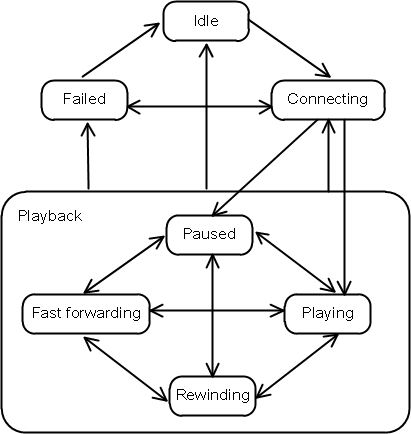
Media Player state diagram

The Media Player state machine has the following states:

  • ToiMediaPlayerBase.STATE_IDLE
  • ToiMediaPlayerBase.STATE_CONNECTING
  • ToiMediaPlayerBase.STATE_PAUSED
  • ToiMediaPlayerBase.STATE_PLAYING
  • ToiMediaPlayerBase.STATE_FASTFORWARDING
  • ToiMediaPlayerBase.STATE_REWINDING
  • ToiMediaPlayerBase.STATE_FAILED

STATE_PAUSED, STATE_PLAYING, STATE_REWINDING and STATE_FASTFORWARDING are collectively referred to as Playback states.

The Media Player never enters STATE_IDLE without being explicitly told by the application. If an error occurs with the network connection, and that error is determined to be fatal to the communication with the server, the Media Player enters STATE_FAILED, which gives the application an opportunity to clean up on its side.

The state machine controlled by events on the network has two states only:

  • No Data In this state there is no data to read. There are several possible reasons for this: no stream has been started, playback of the selected stream cannot be started for some reason, problems on the network cause the stream to be delivered late or not at all. Whatever happens, intentionally or unintentionally, that cause interrupts in the stream delivery triggers a transition to this state.
  • Data Available In this state stream data is available at the expected pace.

See ToiMediaPlayerBase.ON_DATA_AVAILABLE and ToiMediaPlayerBase.ON_STATE_CHANGED

Unreachable States

Some of the states may not be reachable by the Media Player, depending on the stream source or format. For example, a media stream received over a multicast channel cannot be put in the STATE_REWINDING state, since the Media Player has no control of the transmission of the stream. Its only option is to play the stream as it is received from the network, or stop playing it completely.

When a state transition is not possible, the application is notified in one of two ways, depending on the latency involved to get that information from the stream source. The application must always be prepared to handle both mechanisms:

  • ToiOperationNotSupportedException thrown from the play() method when the Media Player knows right away that the operation cannot be completed successfully.
  • ON_STATE_CHANGED event emitted at a later stage when the media player has found out that the state transition was not possible. In this case the Media Player state jumps back to the last state that was valid.

Capabilities

Ongoing sessions have a number of capabilities that indicate which operations are possible at any given time. These capabilities are represented by a bit mask, and can be obtained by calling ToiMediaPlayerBase.getCapabilities()

For example, the absence of the capability CAPABILITY_FASTFORWARD means that the media source does not support fastforward, and requests to enter that state will fail.

Changes in capabilities after a session has started are notified with the ON_CAPABILITIES_CHANGED event.

How to use it

A typical playback session starts by calling ToiMediaPlayer.open() with the media source URL, followed by a call to ToiMediaPlayer.play() with the desired pace.

The pace argument of play() specifies how many milliseconds of media will be played per second. A pace of 1000 means regular playback, 0 means pause, a negative value means rewind and a value higher than 1000 means fastforward.

The resulting pace may be different than the requested pace, depending on the limitations of the stream source and other factors.

When the application wants to terminate the playback session, it calls ToiMediaPlayer.close()

Every call has an impact in terms of performance. If the intention is to start another session with a different URL right away, as it typically happens during zapping, the Media Player provides ToiMediaPlayer.quickPlay() to optimize the sequence of calls needed for that purpose.

Positioning

Some media sources support positioning, which is indicated to the application by CAPABILIY_GETPOSITION. If this capability is present, then it is possible for the application to obtain the current playback position by calling ToiMediaPlayer.getPositionInfo() or to be notified about changes in the playback position by the event ON_POSITION_STATUS_CHANGED.

The information provided by the Media Player about the position includes also the valid range and the playback pace. See ToiPositionInfo.

If CAPABILITY_SETPOSITION is present, then it is also possible for the application to specify the desired playback position by calling ToiMediaPlayer.playFromPosition()

Stream Information

The information about the stream being processed by the Media Player can be obtained by calling ToiMediaPlayer.getStreamInfo(). This information includes a description of all the media components (audio, video, etc) that are part of the stream.

The information about the current stream can also be obtained by the ON_SESSION_STREAM_INFO_CHANGED event, which is emitted at three different occasions: right after start of playing a stream, when the stream information changes and when changing active video or audio stream.

Media Player Parameters

The Media Player Parameters are a tool for providing information or fine-tuning the operation of a Media Player instance. Each Media Player instance has its own set of parameters that are applied to every new streaming session started by it.

The parameters are set either by using ToiMediaPlayer.setParameters() or by specifying an extended URL in open(). If the setParameters() method is called in STATE_IDLE, the change affects the default value of the parameter for that particular media player instance. The default value is the value that will be applied to a new streaming session, in case the parameter is not explicitly defined in the URL argument to the open() method. If the setParameters() method is called in any other state but STATE_IDLE, the change affects the current session only.

Some parameters can also be set at build time by the kreatv-option-streamer-config IIP or at runtime by an Infocast server. This is described in Media Player configuration.

Timeshift

Timeshift gives the media player the ability to keep a time bound buffer of the most recent live content for the currently playing media source. The timeshift buffer operates in a sliding window fashion: old data that does not fit inside the the buffer is overwritten as new data arrives.

If the current media source has the CAPABILITY_TIMESHIFT bit set, it is possible to start timeshift buffering by calling ToiMediaPlayer.startTimeshiftBuffering(). When timeshift buffering has been started, the media player will get pause and rewind capabilities. After a rewind or pause, the media player starts playing from the timeshift buffer instead of from the live stream and it becomes possible to trick play in the timeshift buffer.

The current state of the timeshift buffer can be queried by calling ToiMediaPlayer.getTimeshiftInfo() or monitored by subscribing to the ON_TIMESHIFT_STATE_CHANGED callback. Should the buffering fail, it is possible to retrieve the last timeshift error by calling ToiMediaPlayer.getTimeshiftError().

It is possible to check if the media player is playing from the timeshift buffer by calling ToiMediaPlayer.isTimeshiftPlayback(). To exit the timeshift buffer and return to the live-point again, call ToiMediaPlayer.playFromPosition(POSITION_LIVE, PACE_PLAY).

To configure whether the timeshift buffer should be kept between channel changes, please see the CFG_MEDIA_TIMESHIFT_RECORDINGPOLICY documentation.

The maximum allowed size and duration of the timeshift buffer is configured at build time by the kreatv-option-dvr IIP. KreaTV uses the information provided to this IIP to make a size reservation for the timeshift buffer so that it should be possible to use even though the amount of free disk space is low.

Media Recorder

Media recorders do not decode the media stream. Instead, they write the incoming media stream into recordings stored in a Recorded Content Source (e.g. a hard disk drive). See the Content Service for more information about how to handle Content Sources.

Just like media players, media recorders have a state machine that is mostly controlled by the application and sessions. However, the set of states and commands differ.

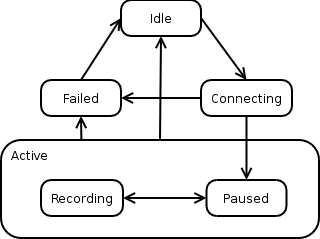
Media Player state diagram

The Media Recorder state machine has the following states:
  • ToiMediaRecorderBase.STATE_IDLE
  • ToiMediaRecorderBase.STATE_CONNECTING
  • ToiMediaRecorderBase.STATE_PAUSED
  • ToiMediaRecorderBase.STATE_RECORDING
  • ToiMediaRecorderBase.STATE_FAILED

Recordings

A storage device capable of storing recordings will be represented by the Content Service as a Recorded Content Source. Using the Content Service, applications can search for recordings available in a Recorded Content Source according to different search criteria, for example, properties such as the duration of the recording, the title, etc. Each recording is given and identified by a Content ID.

Applications can append data to existing recordings or create new ones. In order to create a new recording, an application must first create an instance of a Recorded Content Source with ToiContentService.createRecordedContentSourceInstance() and use it to call ToiRecordedContentSource.copy() or ToiRecordedContentSource.create(). When the operation is completed, a ToiContentInfo is returned for the newly created content entry, containing its unique Content ID. When the Recorded Content Source instance is no longer needed it must be released by calling ToiRecordedContentSource.releaseInstance()

How to use it

A recording session is started by calling ToiMediaRecorder.open(), with a media source URL and a Content ID which identifies the recording entry where the media will be stored. This call is followed by another to ToiMediaRecorder.record() or ToiMediaRecorder.recordAt(), which starts the actual writing of the media. Finally, the recording session can be stopped by calling ToiMediaRecorder.close()

Playing a recording

One of the properties associated to a recording is PROPERTY_CONTENT_URI, which can be used by the Media Player to play the recording.

Timeshift and recordings

A Timeshift buffer has an associated Content Id that can be obtained by calling ToiMediaPlayer.getTimeshiftInfo(). This allows applications to use it as a recording in some scenarios. For example, it is possible to turn a Timeshift buffer into a recording by calling ToiRecordedContentSource.copy()

Media Session

Calling ToiMediaService.openSession() with the sessionId of an existing session will return a ToiMediaSession object for the application to access the corresponding Media Session instance. The sessionId can be obtained by listening to ON_SESSION_STATE_CHANGED.

When an application is not interested in a Media Session anymore it must release it by calling ToiMediaSession.releaseInstance(). This action does not close the underlying session, which can only be done by the owner of the Media Player by calling close()

Stream Information

A Media Session provides information about the stream that is being processed. See ToiMediaSession.getUrl() and ToiMediaSession.getStreamInfo()

Applications can be notified about changes in the stream by the ON_SESSION_STREAM_INFO_CHANGED event.

Type

The Media Session type indicates for what purpose the media is being processed. The type is represented by a bit mask, and the value can be obtained by calling ToiMediaSession.getType()

States

The Media Session has its own state machine, different from the Media Player. The possible states are:

  • STATE_CLOSED
  • STATE_CONNECTING
  • STATE_FAILED
  • STATE_RUNNING
The current state can be obtained by calling ToiMediaSession.getState() or by listening to the ON_SESSION_STATE_CHANGED event.

Media Parameters

Every Media Session has a set of parameters accesible by calling ToiMediaSession.getParameters(). Some of them can be used to fine-tune certain configuration options and can be set by ToiMediaSession.setParameters(). Changes in parameters are notified by the ON_PARAMETER_CHANGED event.

See the list of available parameters for more information.

5.1.1.p8

Copyright (c) 2018 ARRIS Enterprises, LLC. All Rights Reserved. ARRIS Enterprises, LLC. Confidential Information.