Switching Applications
It is important to keep in mind that the portal is responsible for switching between applications, and making itself visible or not as appropriate. The portal also is responsible for switching the remote control input focus between applications, as this is a separate function from visibility.
Application switching requires a few steps:
- Start the secondary app, if necessary
- Set the input focus to the secondary application
- Show the secondary application
- Make the portal (or parts of it) transparent, so the secondary is revealed
It is important to note that the portal is always rendered on top of the secondary applications. To make the secondary application visible, some area (or all) of the portal needs to be made transparent. By default, the location of the <video> element will be transparent. The portal can set its body background color to a transparent or semi-transparent color so that the secondary application becomes visible underneath. This allows the UI to display menus and logos on top of the secondary. More on application visibility.
with
In the following tutorial we will look at how to switch between applications manually, using the toish command. Once familiar with application switching in general, we will look at how the example portal code does this using the TOI3 API.
Switching manually using toish
To make development and testing of multiple application support easier, the toish command has Usingbeen expanded with some features to switch application states and remote control focus. ssh into the set-top box and run toish sec to see:
~ # toish sec
secondaryapp, sec:
  ResetInput
    Reset input focus to the primary application.
  List
    List all the secondary applications
  Start
    Start the secondary application.
  Show
    Show the secondary application.
  Hide
    Hide the secondary application.
  Stop
    Stop the secondary application.
  SetInput
    Set input focus to the secondary application.
The first thing to do is list the secondary applications, and verify that the app/iip you added in integrating web apps is available. Note its name; application switching is performed using the name property.
The kreatv-app-webkit-browser application, "WebKit Browser" will show up in the list here, even if we do not intend to refer to it directly. You can hide it by unpacking its IIP, and changing the properties_ekiohbrowser.xml and changing the ApplicationType property value from secondary to noninteractive. Re-pack the IIP and rebuild the boot image. The WebKit Browser app will no longer show up in any lists of secondary applications (only your application(s) which are based on it will).
Secondary applications will be in STATE_STOPPED when the set-top box boots up. Enter the command toish sec start WebGLDemo and then verify that the application has transitioned to STATE_HIDDEN with toish sec list. It is now ready to be shown.
Run toish sec show WebGLDemo and verify that your secondary app enters the STATE_VISIBLE. It might not actually be visible on the screen just yet, this depends upon what the primary portal is currently doing. Remember that the portal is always drawn on top, and needs to make itself invisible. You should see the secondary app through the video window of the portal. If the portal was showing fullscreen video, then the secondary should be fully visible now. You can confirm that the portal is still running, and rendering itself on top of the secondary (and has remote control input focus still) by pressing MENU on the remote and noticing how the portal is still rendered.
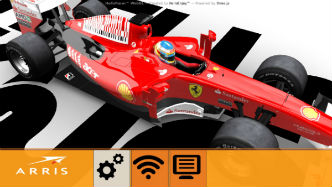
Portal graphics shown on top of secondary app
You can use the toish sec SetInput command to change the remote control input focus to the secondary app. You can use the arrow keys to drive the car around. MENU will no longer bring up the portal menu, since the portal doesn't receive that input event (more on this later when looking at the example code).
Return to the portal
To return to the primary portal, the steps above are carried out in reverse. Reset the input focus to the portal application with toish sec ResetInput and then hide the secondary app with toish sec hide WebGLDemo. As always, the portal is responsible for making itself visible.
Show and hide the secondary app a few times. You will see the transition is very quick and the running state of the secondary app has been preserved. If you want to reset the secondary app for some reason, you can just stop it and restart it.
Switching applications using the portal
The example portal illustrates how to switch applications by calling the TOI3 API from JavaScript, performing the above actions but also handling state transitions in much more detail (like being able to exit from the app, and handle app loading times and crashes).