Transparency and Visibility
Hole-punching for video
The HTML video element used in the primary browser/portal is used for a hole-punching effect. Set the coordinates for the video element and assign it the CSS property "object-fit:fill". This means that the video will be rendered to the same coordinates in the compositor buffer as the video element. The video element becomes a hole in the primary application where nothing is rendered, and so the video layer underneath will become visible. if the secondary app is in STATE_VISIBLE it will be shown in between the primary and the video. The following two diagrams illustrate this:
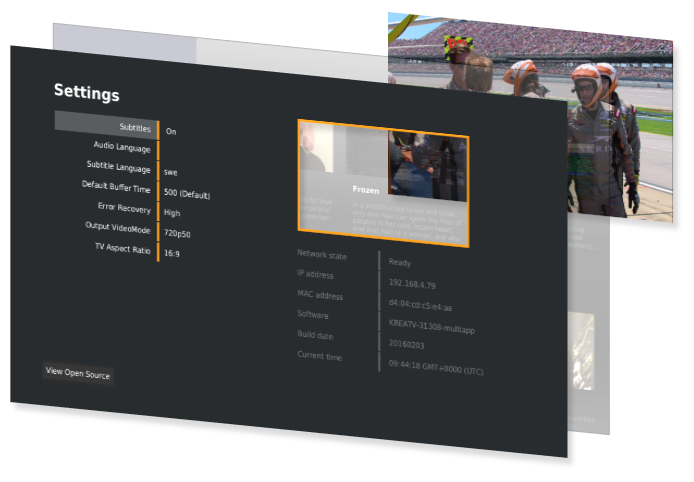
Hole punching with secondary app in STATE_HIDDEN
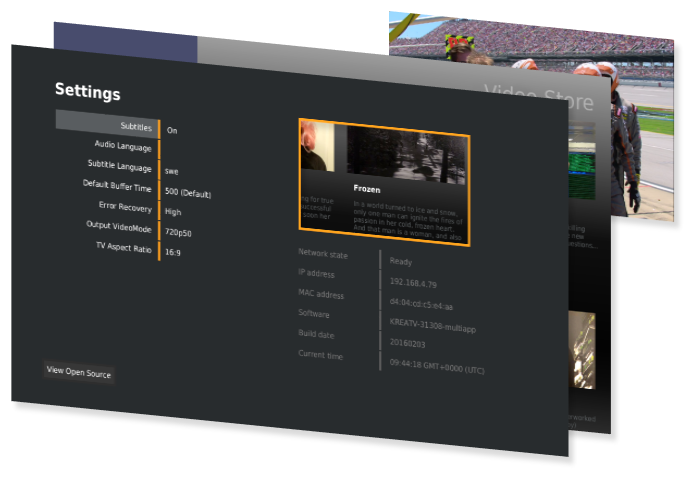
Hole punching with secondary app in STATE_VISIBLE
Fullscreen Transparency
As the primary application is always drawn on top of the other applications, a fullscreen video element can be used to give the impression of switching applications entirely. The diagram below illustrates this. Here, the example portal, running in the primary application, is composed of one fullscreen video element and the orange <div>. The video element itself is not rendered, leaving a transparent hole through the primary application and allowing the lower application layers to be seen.
The orange <div> is given a higher z-index than the video element, so although the video element punches a fullscreen hole through the browser, the div is rendered on top of that hole, covering some of it. This is an easy and useful way to display a menu or icon over the secondary app.
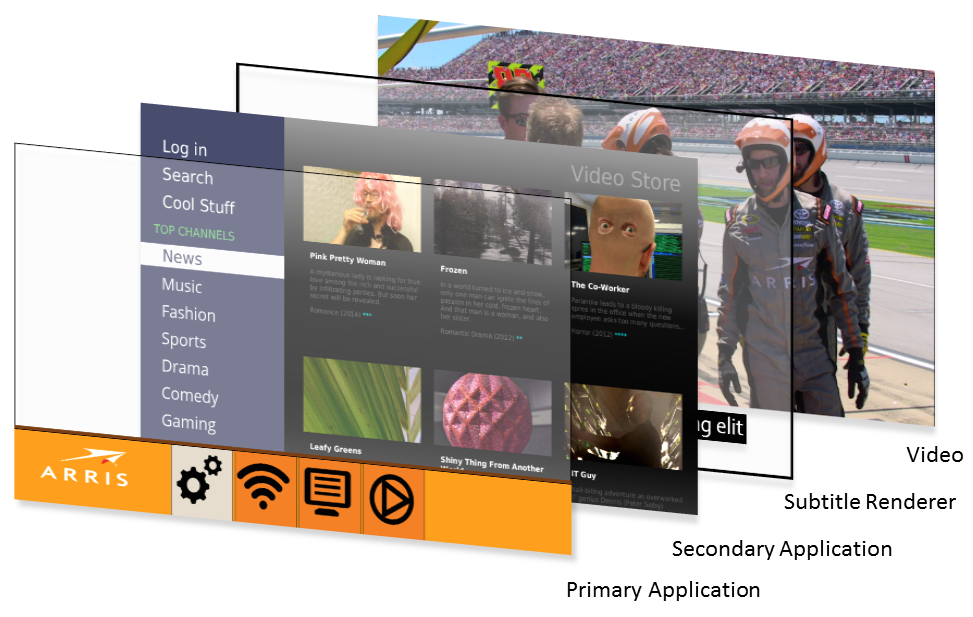
The KreaTV platform manages the Subtitle Renderer layer automatically.
Using a transparent browser
In addition to the hole-punching provided by <video> it is also possible to configure the primary brower to use a transparent or semi-transparent color as its background. This is not as simple as just using a <div> tag with a transparent background color, as this would only reveal any underlying <div>'s, the page <body> or (if they were all transparent too) the primary browser application background itself. Transparency through the primary application is done in two steps:
Configure the application
The kreatv-app-webkit-portal IIP provides a way to set vendor (Ekioh) specific arguments, one of which is the background color the application will use. Add the following to your boot image configuration file:
This tells the primary application to use a transparent background when it is being rendered.
Configure the portal
Now that the primary browser application background is transparent, the actual <div>'s and background to the portal itself also have to be transparent (or semi-transparent). The easiest way to do this is to set the background-color for the page <body> to a color including an alpha channel. You can do this with the CSS for your portal as follows:
Now, although the primary application is always drawn on top of other applications, it will be invisible. Any <div> tags with an opaque background color will appear on top of the secondary application (or the video, if no secondary application is in STATE_VISIBLE).

