• Quick Start
  • Booting
  • Platform
  • Portals
  • References
    • API Reference TOI3
    • IIP Reference
  • Resources
ARRIS Enterprises, Inc. Confidential Information

Video element properties

Introduction

The <video> element is a new tag which is defined in HTML5. Here, only the specifics of the implementation is listed. For more information, please refer to the HTML5 standard.

The "controls" attribute of the HTML5 video tag is not supported.

The following warning message will be issued if the videoplane element is encountered: <videoplane> is not supported, please use <video> instead.

The HTML5 video tag can be used in two ways. If <video src="..."> is used then the HTML5 video tag controls will be effective. If <video src="toi://"> is used then the KreaTV TOI media player controls will be effective.

There are two usage scenarios for the video element: one is to create main video element, the other is to create a PiP(Picture in Picture) video element. In each scenario, only the last created video element takes effect, even though multi-video elements are created! That means no two PiP or two main video elements can take effect at the meantime!

Video Overlaying

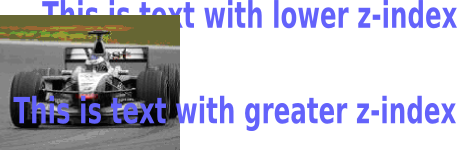
Video overlaying can be done by using the CSS z-index property. An element with greater z-index will be placed above elements with lower z-index.

Examples

Positions the video surface on the screen with a height and width of 300x300 pixels.

<video id="video" style="position:absolute;
                  height: 300px;
                  width: 300px;">

  <source src="movie.mp4"/>
</video>
or

<video id="video" height=300 width=300>
  <source src="movie.mp4"/>
</video>
One way of doing full screen using style sheet attributes for the video tag.

<video id="video" style="position:absolute; 
                  left:0; 
                  top:0; 
                  height: 100%; 
                  width: 100%">
                  
  <source src="movie.mp4"/>
</video>
Example of z-index positioning. The z-index is used for positioning the surface along the z-axis.

<video style="z-index:10; 
              position:absolute; 
              top:200px; 
              left:100px;">

  <source src="movie.mp4"/>
</video>

<div style="z-index: 2; 
            position:absolute; 
            top:250px; 
            left:50px;">
This is text with lower z-index
</div>

<div style="z-index: 20; 
            position:absolute; 
            top:300px; 
            left:50px;">
This is text with greater z-index
</div>
Example of doing an autoplay as soon as the video is ready

<video id="video" autoplay="autoplay">
  <source src="movie.mp4"/>
</video>
Example of loop playing the video

<video id="video" loop="loop">
  <source src="movie.mp4"/>
</video>

JavaScript Examples

Full screen with JavaScript

  video = document.getElementById("video");
  video.style.position = "fixed";
  video.style.height = "100%";
  video.style.width = "100%";

Volume control

Video tag has a volume attribute. Setting the volume attribute will control volume in two scenarios which are based on the selected master audio (master audio can be set by cfg.portal.masteraudio).

1. If the master audio is set to analog, setting video tag volume attribute will impact analog output.

2. If the master audio is set to decoder, setting video tag volume attribute will impact all of the audio outputs including HDMI, SPDIF, ANALOG and VCR outputs.

If nothing is set or an invalid value is set, the master audio will default to analog.

Video aspect ratio

Video aspect ratio is by default preserved. If it's necessary to make the aspect ratio follow the size of video tag, you could set css property "object-fit" to "fill" for the video tag element.

5.0.1

Copyright (c) 2016 ARRIS Enterprises, LLC. All Rights Reserved. ARRIS Enterprises, LLC. Confidential Information.