| ARRIS Enterprises, Inc. Confidential Information |
Developer ToolsKreaTV 5 introduces several new tools to assist with portal development. These tools allow you to edit the portal source code on a PC or Mac in a feature rich IDE such as Eclipse, enjoying full auto-completion of the TOI API. Not only that, but you can debug these with Web Inspector, and all the time continue to use the TOI API to interact with the STB. This means that even with the portal running on your PC/Mac you can zap channels, change audio/subtitle tracks, use the remote control, put the STB in and out of standby, etc and so on. The STB no longer cares if the portal is running locally, or remotely across the network.
Remote TOISince TOI3 is implemented as a Web Service, this opens up a completely new kind of in-home STB communication. Since the KreaTV platform no longer cares where the client using TOI is located, the STB can easily be controlled from another STB, or by an app in a smart phone, or a tablet. With proper client authentication in place different multi-room scenarios can be supported using only TOI and without being limited by the functionality provided by other techniques (such as DLNA). For a UI developer, remote TOI access can be used to drive a UI running in the desktop browser and greatly enhances the development environment. See the reference section for Remote TOI for details on how to initialize remote TOI. Web InspectorTo use Web Inspector, you must first configure the boot image to enable support. You do this by providing a port argument to the portal IIP as follows: Boot the STB with this boot image and load your portal. You can now connect to the STB from any WebKit-based browser (such as Safari) by navigating to the URL You will be shown a list of Inspectable web views. Select the one you want to inspect and the web inspector UI will load: 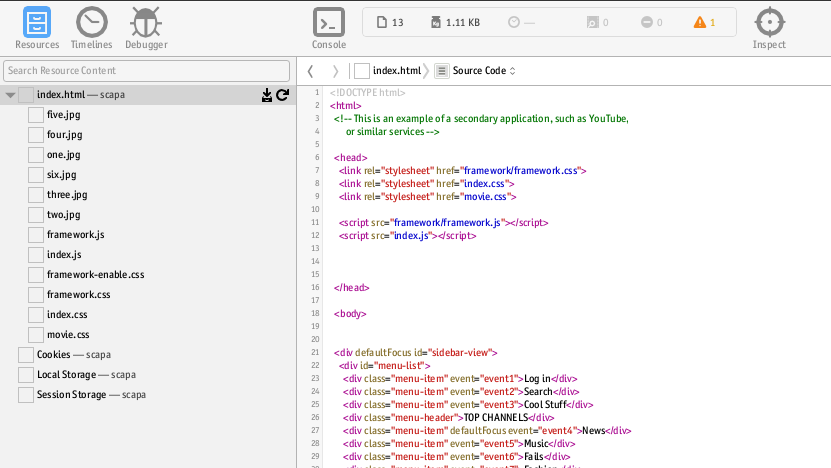
ConsoleThe JavaScript Console feature allows you to execute expressions and display the results, in the context of your running portal. This is very useful for debugging and experimenting with running portal code, as well as for learning and working with the TOI API. Connect to the STB in the same way as described above for Web Inspector. Click the 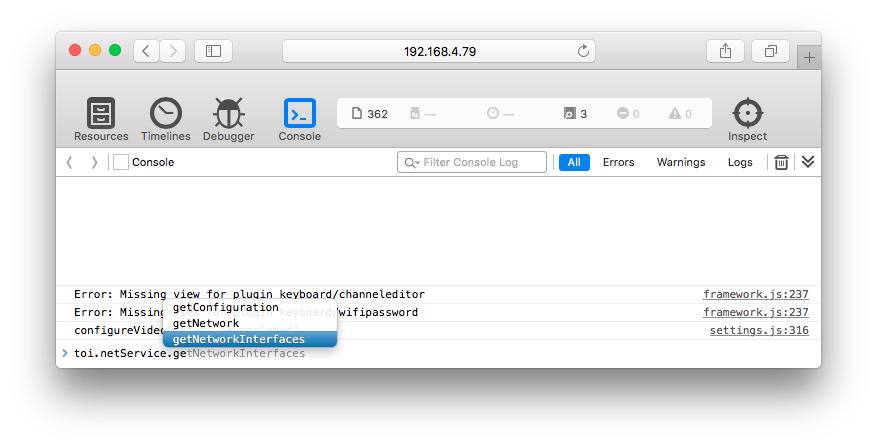
TOI definition filesMost common JavaScript IDE's provide an automatic code completion feature. Since TOI3 is a JavaScript language, you can benefit from this and speed up development of your portal. The KreaTV SDK contains JavaScript files which can be included in your project to enable TOI API auto-completion. Setting up TOI definitions in Eclipse
You can now edit TOI portal code in your IDE, and enjoy auto-completion. 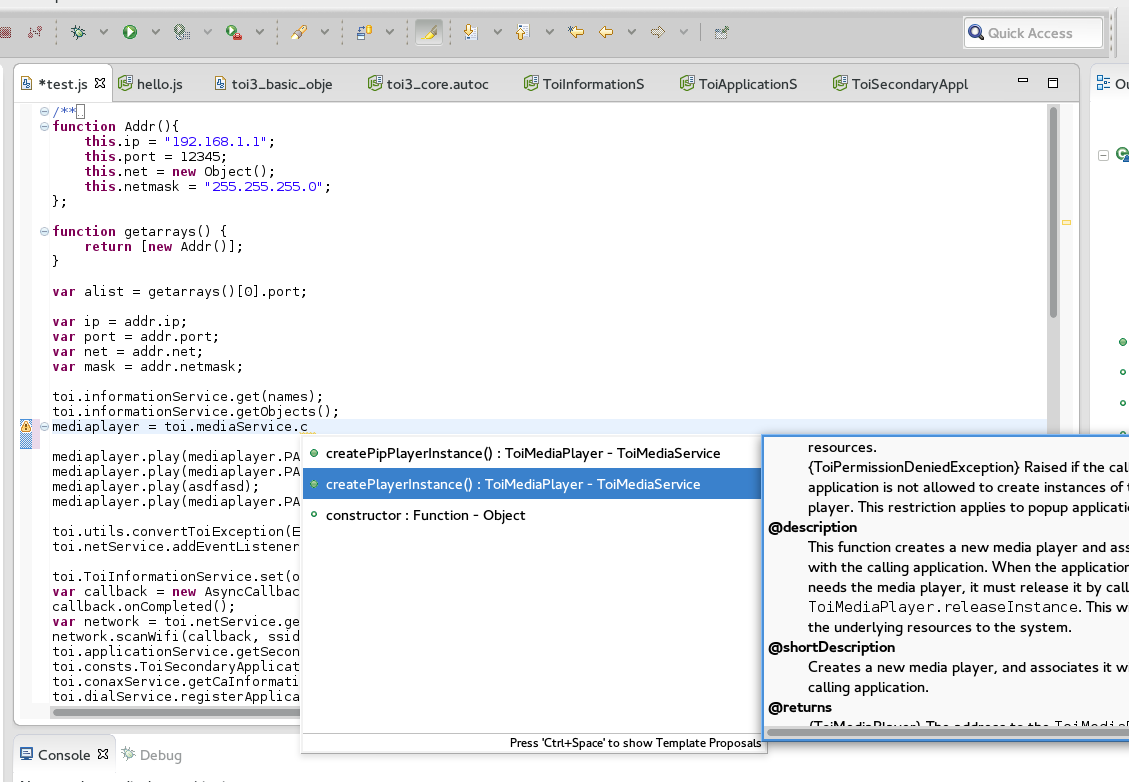
|