| ARRIS Enterprises, Inc. Confidential Information |
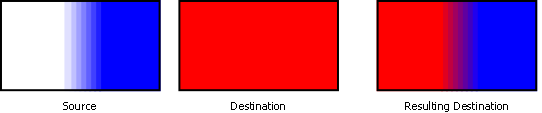
KreaTvGfxKreaTvGfx is accessed through the main interface with the same name, IKreaTvGfx. An instance of it is created with the CreateKreaTvGfx() function. PixmapA pixmap is basically an area of graphics memory that corresponds to a rectangular image. These allow the application to directly access the graphics memory and even do hardware accelerated operations through the blitter. The IKreaTvGfx interface contains the CreatePixmap() function that is used to allocate pixmaps. When you want to access the graphics memory for reading or writing you first have to lock the pixmap through the IKreaTvGfxPixmap::Lock() function and when done release the lock with IKreaTvGfxPixmap::Unlock(). The Lock() function returns a pointer to the graphics memory that should be used for read and write access. The pointer should not be used after unlocking since this might conflict with blit operations. It is not even guaranteed that a pixmap will return the same address at every call to Lock(). Since blit operations are queued and performed asynchronously, lock may be in conflict with these. If a blit operation is queued (both for source and destination usage) for the pixmap, the lock will fail unless the wait parameter is "true". In that case the call to Lock() will synchronously halt until the blit operation is done. The other way around, if the pixmap is locked, any call to blit operations (IKreaTvGfxBlitter::Fill() or IKreaTvGfxBlitter::Copy()) will fail as well. BlitterThe blitter is a hardware component that is used to perform accelerated 2D graphics operations; filling an area of a pixmap and copying an area of a pixmap into another pixmap. Copying can be done with or without scaling, depending on if the source and destination rectangles have the same size or not. Note that many chipsets have restrictions on the scaling factors and operations will fail if the scaling factors are not accepted. The IKreaTvGfx interface contains a GetBlitter() function that is used to get the IKreaTvGfxBlitter interface. This interface contains the IKreaTvGfxBlitter::Fill() and IKreaTvGfxBlitter::Copy() functions to perform blit operations. When using the blitter it is important to note that the blitter is based on a queue and that all calls are asynchronous, i.e. operations are only put on the queue. It is possible to queue several blit operations to or from the same pixmap, they will be performed in the order they are queued. However, when a blit operation is queued, the pixmaps in the operation will not be possible to lock for manual drawing until the blit operations are done. Both the fill and copy operations can be performed with or without blending. For convenience reasons it is possible to create more than one instance of the blitter object. This allows the user to have one blitter instance where blending is enabled and one where it is disabled so that SetBlendEnabled() does not have to be called before each operation is queued. When blending a pixmap on top of another pixmap using Copy(), the destination pixmap will show through the transparent or semi-transparent parts of the source pixmap that is copied into the destination.
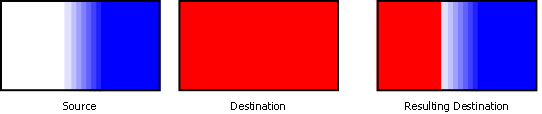
Full screen copy blit operation with blending enabled. If blending is disabled on the other hand, the resulting destination pixmap will be transparent in the same way as the source. If the resulting destination pixmap is the frame buffer, underlying video layers will show through these transparent parts.
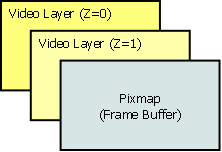
Full screen copy blit operation with blending disabled. DisplayTo separate the handling of different video outputs on the STB, KreaTvGfx uses the concept of displays. Currently there is one display for high definition outputs, like HDMI and component, and one display for standard definition outputs, like SCART and S-Video. Each display allows full control of what is being shown, both graphics and streaming video. This allows the application layer to decide whether to display graphical user interfaces on one type of output only, e.g. a program guide with picture-in-graphics on HD while showing full-screen video on SD. It is even possible to show different graphics on the different displays if necessary. The IKreaTvGfxDisplay interface for each display is accessed with IKreaTvGfx::GetDisplay(). From the IKreaTvGfxDisplay interface it is possible to set up video layers, enable flicker filtering and get the video mode of the display. To make graphics visible on a display you have to first set the pixmap to show with SetNextVisiblePixmap(). After that you have to make the pixmap visible by calling Update() which will show it on the display at the next vertical blank. Some chipsets are able to do limited scaling (e.g. stretch to double size horizontally) of the pixmap to make it fit the screen and some chipsets can not do scaling at all. The pixmap will always be shown "full-screen" and the update will fail if an unsupported scaling is attempted. The user of the display should always act as an observer to receive notifications when the video mode changes, by implementing the IKreaTvGfxDisplayObserver interface. This is important since the frame buffer, i.e. the full screen pixmap to show on the display, may have to change size. The application layer should always perform a new update when an event has been received. The observer interface also contains a callback for indicating when an update has been successfully performed. This is useful to know when the pixmap to show has actually been switched. When you want to do smooth animations you might want to use the double buffering technique to avoid "tearing" effects on the screen. This might not be possible on systems with little graphics memory though. The technique basically means that drawing operations are performed on a back buffer that is not shown on the display and when an update (flip) is done the previously shown buffer is used as back buffer instead. Make sure to use the OnUpdate() callback in the observer interface to know when it is safe to draw in the previously shown buffer. The Update() function is usually called Flip in many other systems but in KreaTvGfx this function has other effects than just flipping the graphics buffer. All changes to video layers are also synchronized with the update so that it is possible to change graphics and video layer positions without strange effects on screen. Video LayerTo show video on the screen a video window must be setup on one of the video layers. Each display has a number of video layers available (the number depends on the chipset) which can show video from the main media player or from the picture-in-picture (PiP) player by setting the source. Currently KreaTvGfx only supports a single video layer per display. The IKreaTvGfxVideoLayer interface objects can be fetched with IKreaTvGfx::GetVideoLayer(). Each layer can then be enabled or disabled to make them visible or not. Graphics is always considered to be on top of all the video layers but the order between video layers can be adjusted by setting the Z-index. Layers with higher index values are displayed on top of video layers with lower index.
Graphics and video layer order. The graphics rendering engine can set a video window in each video layer by calling IKreaTvGfxVideoLayer::SetVideoWindow(). This controls where on the screen the video will be shown, but note that the rendering engine is still responsible for punching a transparent hole in the graphics to make the video layer visible. Naturally, this allows setting up semi-transparent effects. Just like with the frame buffer, it is important to react on video mode changes indicated on the IKreaTvGfxDisplayObserver interface since the co-ordinates are relative to the display, i.e. the current video mode. In addition to setting up the video window, the rendering engine can set up a source and destination rectangle using IKreaTvGfxVideoLayer::SetSourceRectangle() and SetDestinationRectangle(). These two functions can be used to set up aspect ratio conversion by cutting and boxing the video, e.g. center-cut-out or letter-boxing, however it is recommended to use the Video Output Service to set up automatic aspect ratio conversion rules. If aspect ratio conversion rules have been set up with the Video Output Service, setting the source or destination rectangle will override these rules. This will not, however, override automatic video mode changes. Currently both aspect ratio conversion rules and automatic video mode changes are set up with IToiVideoOutputService::SetFullscreenAdaptiveMode(). This is subject to change, and there will be orthogonal rules for video mode settings and scaling/clipping. The interface will also not be restricted to full-screen video.
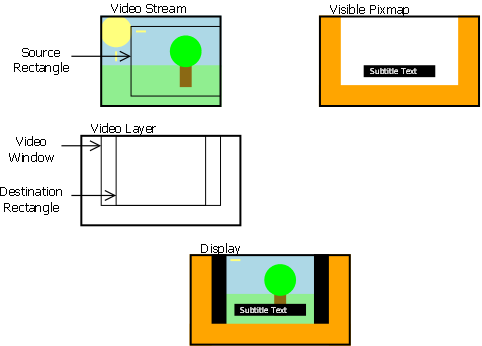
Video and graphics composition example with video transform. The source rectangle is the part of the playing video to show in the video window. If the source rectangle is not set or set to empty, the behavior defaults to showing the entire decoded video frame. If this function is used, the user should make sure to react on IToiMediaPlayerObserver::OnStreamInfoChanged() events to adjust the rectangle, since the co-ordinates are relative to the currently played video stream. The destination rectangle is the part of the video window to show the video at, which is not necessarily the entire video window. If the destination rectangle is not set or set to empty, the behavior defaults to stretching the video to fit the entire video window. If the video window changes size, this function needs to be called as well, since the co-ordinates are relative to the window, i.e. position X=0, Y=0 means the top, left corner of the video window All changes to video window, source and destination rectangles are synchronized and are applied by calling IKreaTvGfxDisplay::Update(). |